The Storage Brain:
Synology NAS OpenClaw Setup
/** Bring your intelligence to where your data already lives. */
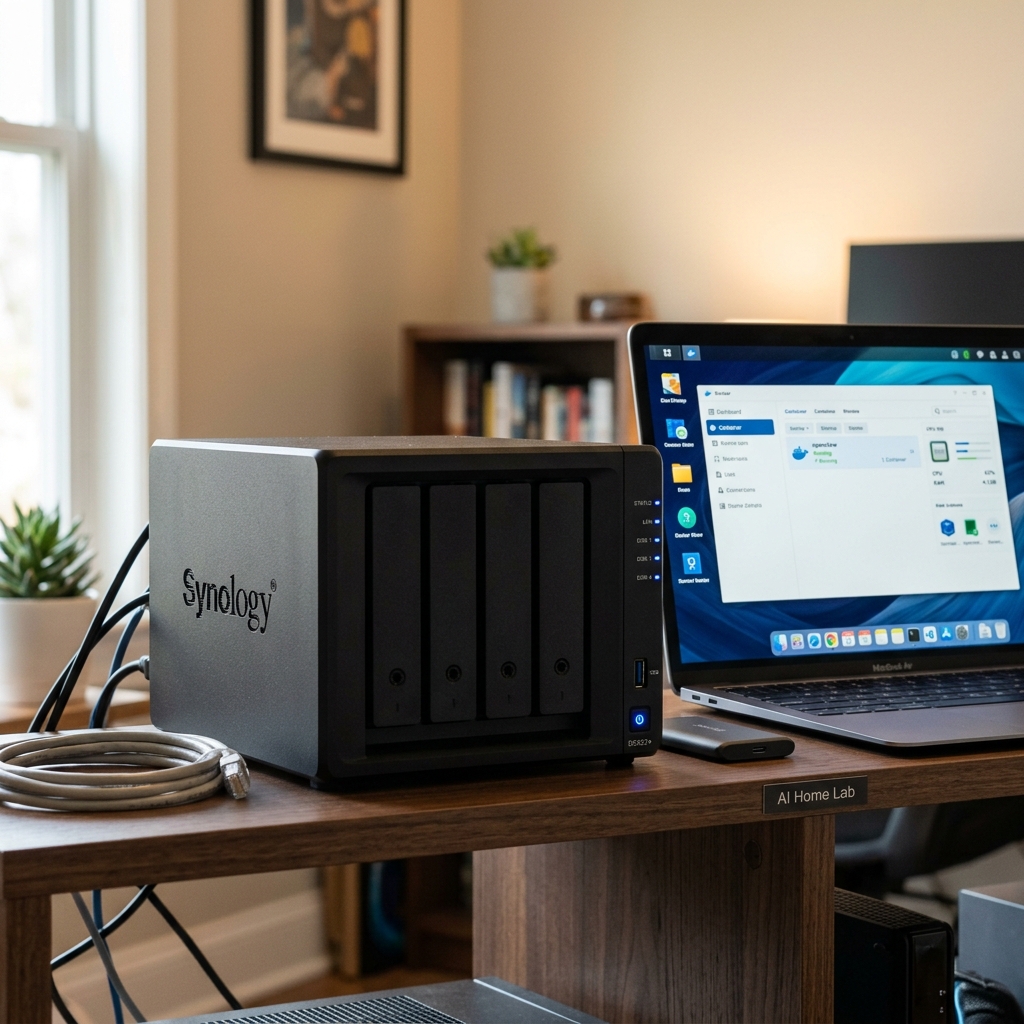
If you own a 4-bay+ Synology (DS923+ or DS1522+), you have an always-on AMD Ryzen server. Running OpenClaw directly on your NAS means zero latency for reading your terabytes of PDFs and documents via local volume mounts.
1. The Non-Negotiable RAM Upgrade
Most Synology NAS units come with 4GB or 8GB of ECC RAM. This is barely enough for DSM. You must upgrade your RAM before proceeding.
- Purchase compatible, unbuffered ECC DDR4 SODIMM RAM (e.g., 2x16GB Crucial or Kingston sticks).
- Power down the NAS, remove the drive trays, and pop in the new memory.
- Boot up and verify DSM recognizes the new 32GB capacity.
2. Setup Container Manager
- Open the Package Center in DSM.
- Search for and install Container Manager (formerly Docker).
- Create a subfolder named openclaw inside /volume1/docker.
- Inside openclaw, create two subfolders: data and ollama_models.
3. Deploy the Compose Project
In Container Manager, define a new Project to orchestrate OpenClaw and Ollama.
A Note on Synology Firewall
Never expose port 3000 to the public internet directly via router port forwarding. Always use a deeply authenticated reverse proxy (Cloudflare Zero Trust Tunnels or Tailscale) to remotely access OpenClaw.
Check your model before anything else
Synology is not one platform. The gap between an entry ARM unit and an x86 Plus-series box is the difference between this being straightforward and being impossible, and no amount of configuration bridges it.
| Your unit | Container Manager | What that means here |
|---|---|---|
| x86_64 (Plus, XS, most DS-x20+ and newer) | Available | Compose works. This guide applies as written. |
| Selected ARMv8 models on recent DSM | Available | Works, but these are low-power CPUs. Expect to run the gateway only, with the model hosted elsewhere. |
| Older entry ARM units (J-series and similar) | Not available | Container Manager cannot be installed. Nothing on this page will help; see the alternative below. |
Synology moved on this over time — some ARMv8 units that could not run containers now can on current DSM. Check Package Center on the actual device rather than trusting a compatibility list you found in a forum thread, including this one.
Establishing what the hardware will give you
A NAS is built to move bytes off disks, not to do arithmetic. Even on a supported x86 unit the CPU is usually a low-TDP part shared with DSM's own indexing, snapshots and whatever else you already run on it. Find out what is actually spare before planning around it.
# SSH into the NAS and find out what you are actually working with:
uname -m          # x86_64  → Container Manager is available
                  # aarch64 → depends on the model; check Package Center

nproc             # how many cores you have to share
free -h           # how much RAM is left after DSM takes its share
If `free -h` shows little available after DSM and your existing containers, adding a language model is not going to end well. The gateway itself is light; a local model is not.
# Package Center → search "Container Manager"
# If it does not appear, your unit cannot run it. Stop here and
# read the alternative at the bottom of this page.
This is a binary answer and it decides the rest of the project. Getting it from Package Center on the device is the only reliable check.
Composing it, and the CPU limit that silently fails
Two details make the difference between a container that works and one that half-works. Both are Synology-specific and neither is obvious from the OpenClaw documentation.
services:
  openclaw:
    image: ghcr.io/openclaw/openclaw:latest
    restart: unless-stopped
    volumes:
      # Mount state as a DIRECTORY. Never as a single file.
      - /volume1/docker/openclaw:/home/node/.openclaw
      - /volume1/docker/openclaw/workspace:/home/node/.openclaw/workspace
    ports:
      # Bound to loopback: reach it over the NAS's own VPN or an SSH
      # tunnel, never by opening 18789 on the router.
      - "127.0.0.1:18789:18789"
The documentation is explicit that gateway state must be mounted as a directory, not a single file. On port binding: a NAS is usually the one machine in a house with ports already forwarded, which makes it exactly the wrong place to casually expose an agent endpoint.
# This will NOT work on a Synology kernel:
#
#   deploy:
#     resources:
#       limits:
#         cpus: "1.5"
#
# You get: "NanoCPUs can not be set, as your kernel does not support
# CPU CFS scheduler or the cgroup is not mounted"
#
# Use Container Manager's CPU priority (low/mid/high) instead.
# It is a priority, not a cap — a busy container will still take
# whatever is idle.
The Synology kernel ships without the CPU CFS scheduler cgroup, so the standard compose syntax for CPU limits fails outright with an explicit error. Container Manager's CPU priority setting is the available alternative, and it is a scheduling hint rather than a ceiling — a busy container will still consume idle capacity.
When the NAS is the wrong host
- ✗You want the model running on the NAS too. Unless it is a high-end x86 unit with real RAM to spare, point it at a model hosted elsewhere.
- ✗Your unit cannot install Container Manager. Run the gateway on a Raspberry Pi or a mini PC and let it mount the NAS shares over SMB — you keep the storage benefit without fighting the platform.
- ✗You rely on the NAS for backups and want it left alone. An agent with write access to a backup target is a bad shape, regardless of how well it behaves.
- ✗You were counting on capping its CPU so it cannot affect DSM. That control is not available in the form you expect, so budget for the container occasionally competing with the things the NAS exists to do.